
Domino Physics
A 3D domino sandbox: place tiles, draw a curve that lays them for you, and send a charged ball through the chain. Scenes stay on your device.
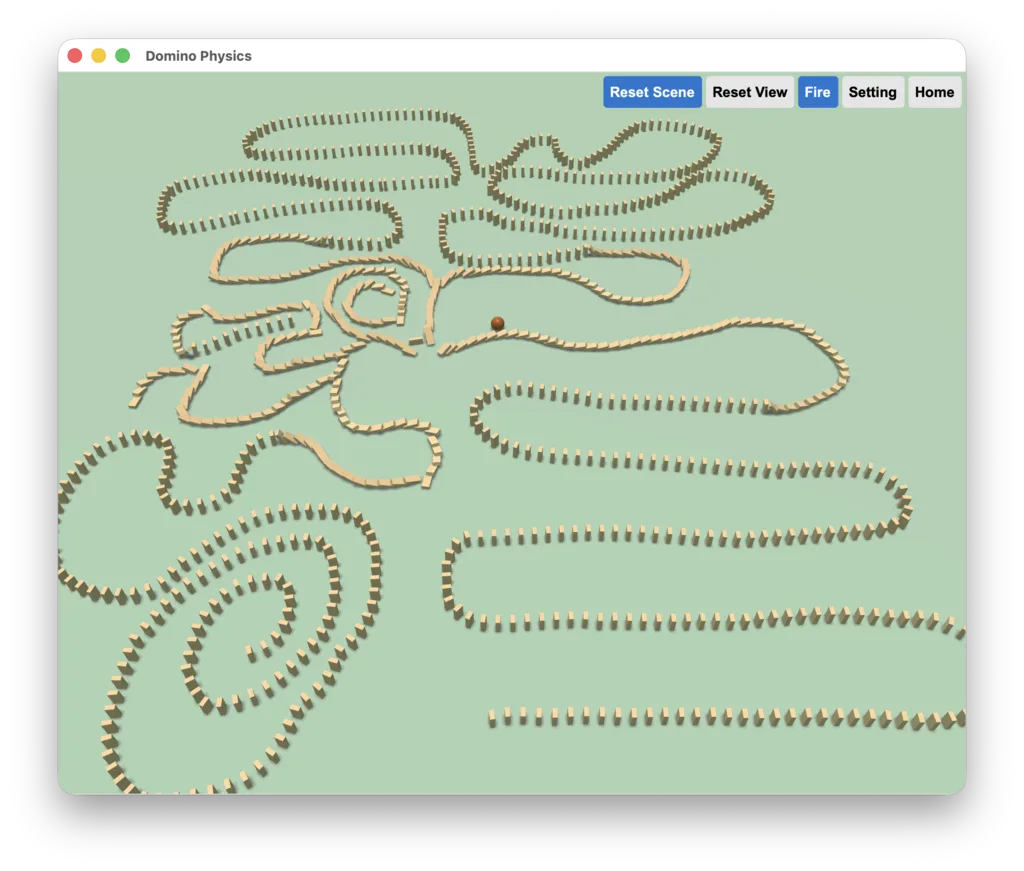
Domino Physics is a 3D domino sandbox with real physics: tiles topple for real, stack into multi-layer walls, and knock their neighbours over; a charged ball can plough through dozens of tiles; and a single dragged curve lays a whole run of tiles along it.
Every scene lives on your own device: no account, no network, no ads and no in-app purchases.
The editor has three modes - Domino, Ball and Track. In Play mode you can tip a tile with a tap, charge a ball with a long press, or fire the whole chain with one button. Reset Scene replays the same cascade again and again.
The interface language follows your system (Simplified Chinese, Traditional Chinese, English, Japanese). Theme colour, UI scale and light / dark mode are in the app settings.
Downloads
Get it from the Mac App StoremacOS only
Install from the App Store and you'll be reminded when a new version ships — no need to come back here and re-download.
Only the macOS version is on the App Store for now; iOS / iPadOS are still in the works.
How to use
Thirty seconds to start
Place: in Domino mode, click the ground and a tile stands up there.
Tip: switch to Play mode and tap any tile - it falls away from your click, and the rest follow.
Replay: Reset Scene starts the same run over; Reset View only moves the camera back and leaves the tiles alone.
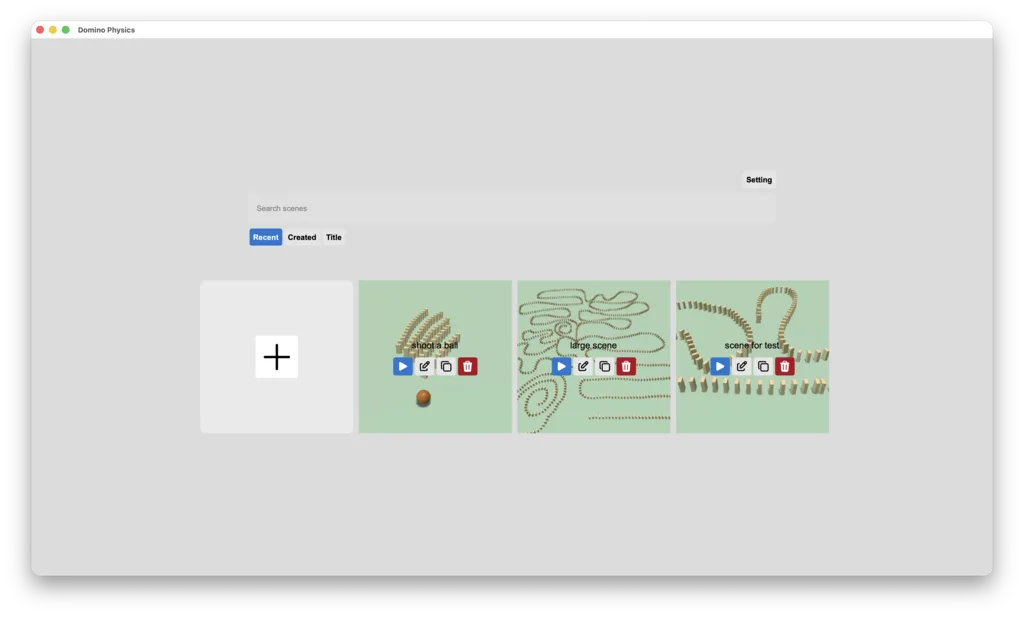
Dominoes: place, stack, thicken, batch-select
Click the ground to place a tile, then set its facing with the direction slider. One drag is recorded as a single history entry, so Undo steps back cleanly.
Height Layer stacks tiles into a wall and is measured from the ground, not from the camera. Tile Thickness is a per-scene value, so the physics is rebuilt when you change it.
Snap Grid and Show Grid keep everything aligned.
Turn on marquee selection to drag a rectangle over a group of tiles and delete, deselect, undo or redo them in bulk. With it off, the same drag rotates the view.
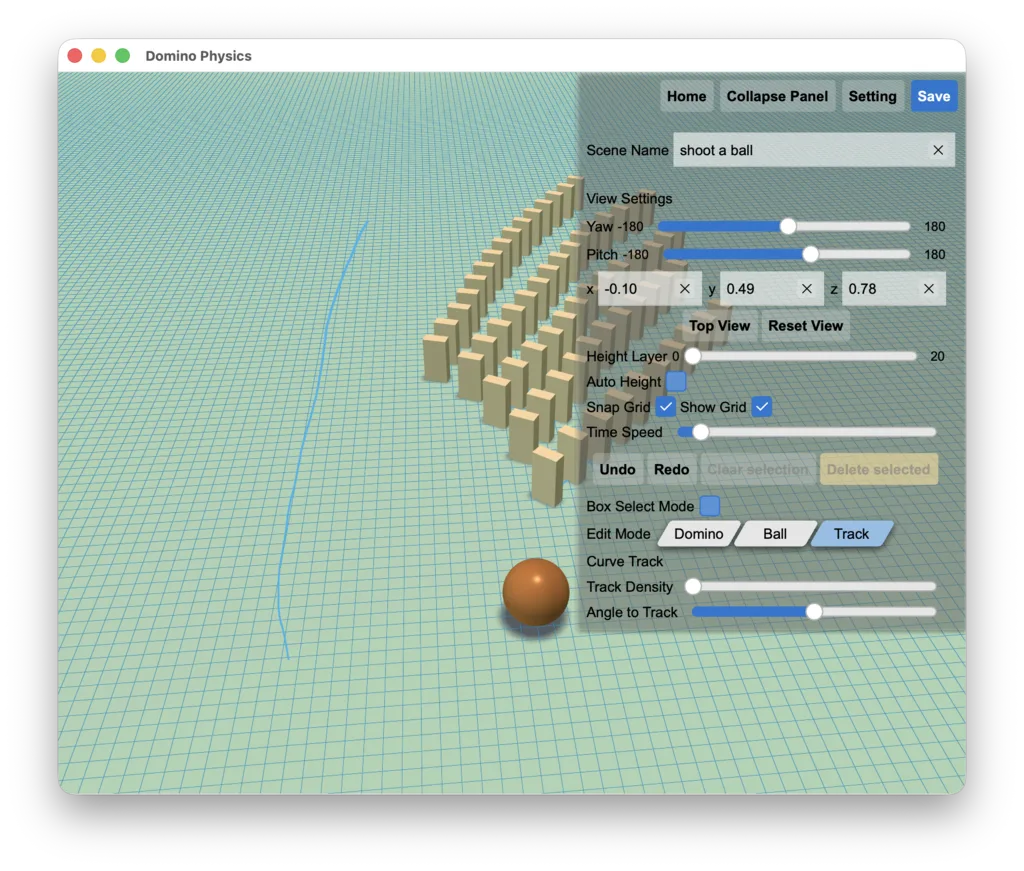
Track: draw a curve, tiles line up
Switch to Track mode and drag a curve on the ground - tiles are laid along it, facing along the tangent.
Track Density is the distance between the centres of two neighbours. The default of 4 cm is smaller than the 5 cm tile height, so they always overlap and the chain keeps falling. Angle to Track tilts the tiles relative to the tangent to choose which way they fall.
A track can be moved or deleted as a whole; a marquee that fully encloses it selects the whole track.
Tracks hug the ground automatically, and so do the tiles on them - that is not affected by the Auto Height switch.
The track values in the panel are defaults for the next track; existing tracks keep their own density and angle.
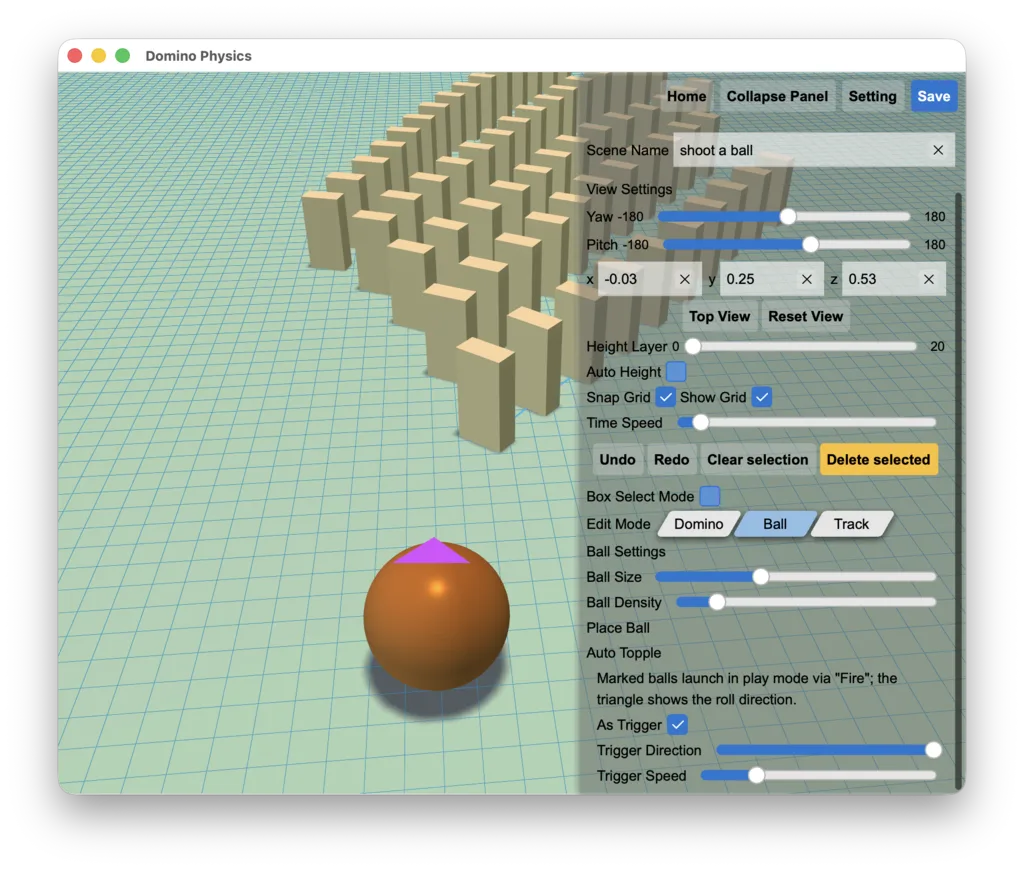
Balls: size per ball, density per scene
In Ball mode, click the ground to drop a ball. Size is per ball: the Ball Size slider is used for the next ball, and with a ball selected it changes that one only - balls in old scenes keep their size.
Ball Density (default 4x) is a scene-wide mass multiplier. It decides how hard the ball hits, not how far it rolls - that only depends on launch speed and rolling friction.
Balls are placed one at a time; only tracks lay objects along a path.
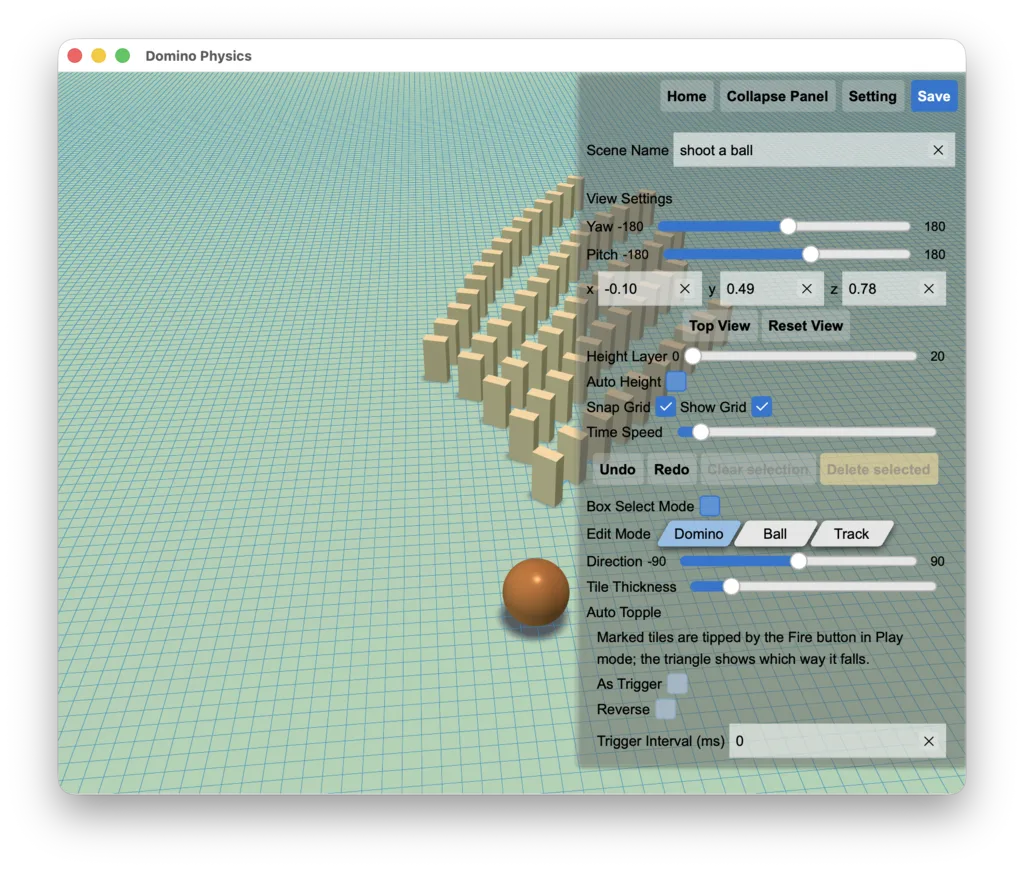
Auto Topple: fire the whole chain
Select a tile or ball and tick As Trigger to make it part of the chain. Reverse flips a tile's falling side; a marked ball launches along the direction the camera was facing when you ticked it.
Trigger Interval (ms) staggers one volley: the Nth item is pushed after N x interval milliseconds. 0 (default) fires everything at once, up to 2000 ms. It is saved with the scene, so the same cascade repeats exactly.
A marked ball can also store its own Trigger Direction and Trigger Speed.
Play mode: tap to tip, hold to charge
Tap a tile to tip it away from your click; tap a ball to roll it about 1.1 m.
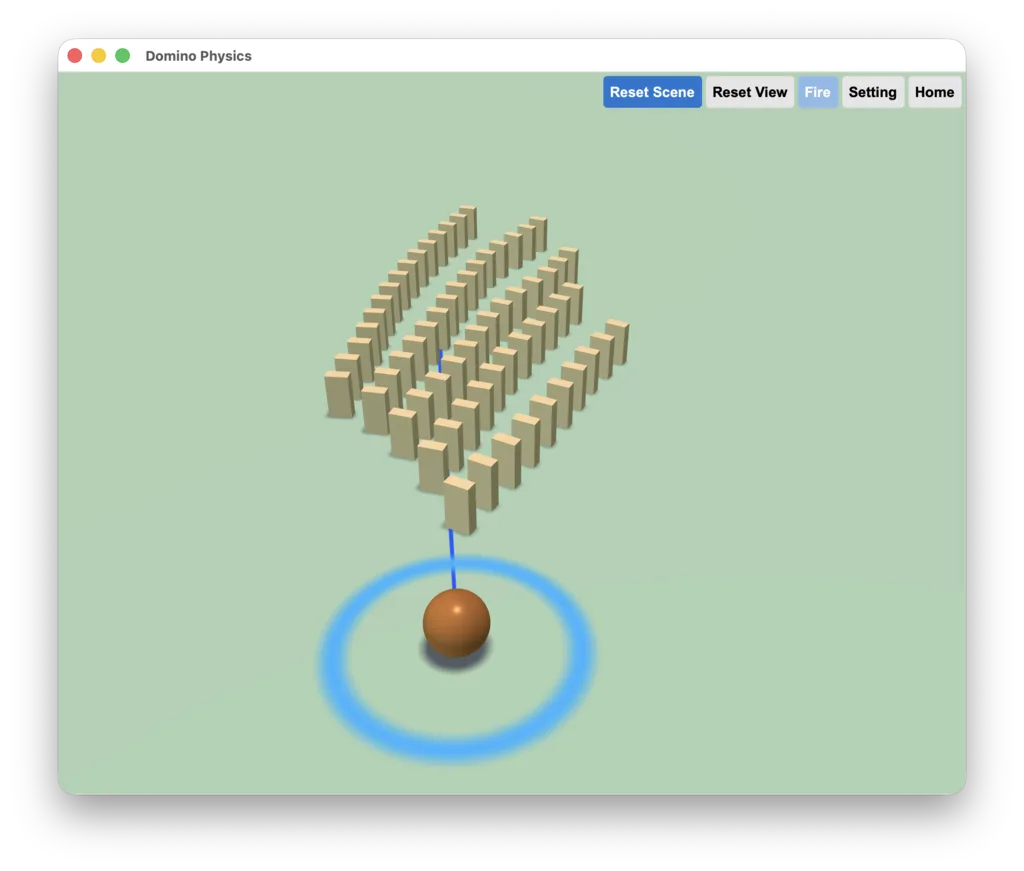
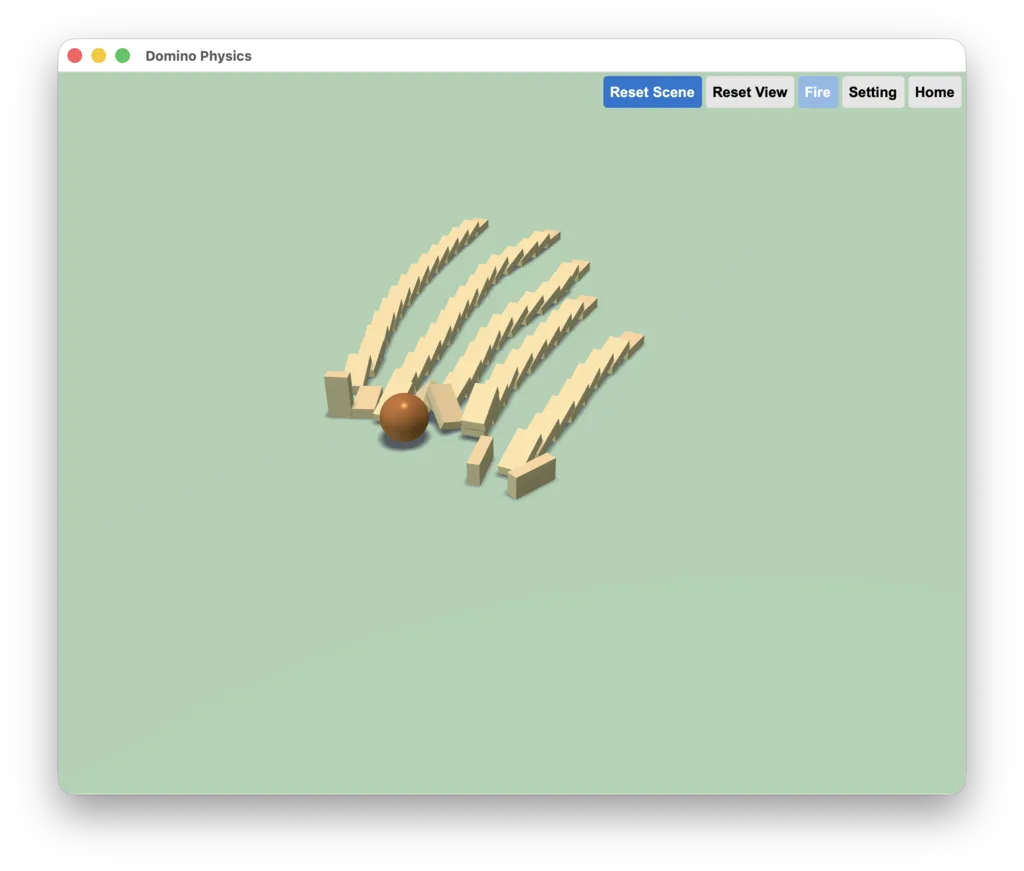
Hold a ball to charge it - a ring grows under the ball, and releasing launches it with force that scales with how long you held. A full charge rolls roughly 7.8 m, enough to smash through dozens of tiles, which makes it a great detonator for a long chain.
Hovering a ball shows a blue aim line in front of it; it stays while you charge and disappears on release or Reset Scene.
Play toolbar: Reset Scene reloads the scene untouched, Reset View only recentres the camera, Fire starts the volley, plus Settings and Home.
Colour code: blue = ball aim line, cyan = track line, orange = current selection, magenta = trigger marker. Impacts are spatial - volume follows impact energy and distance, and pans between channels by position.
Camera movement and shortcuts
Dragging rotates the view instead of panning the camera: you grab the patch of ground under the pointer and it follows 1:1, at constant height (the same on touch with one or two fingers).
Wheel rotates the view; Shift + Wheel raises or lowers the camera; pinch zooms.
W / Up forward, S / Down back, A / Left left, D / Right right, Q down, E up. Hold several keys at once - diagonals are not faster. Ctrl / Cmd / Alt keep these keys for the system.
Flight speed scales with camera height (about 1 m/s per metre of height, clamped to 0.15-4 m/s). Key Move Speed in settings scales the whole thing from 0.1x to 5x.
Double-tap the ground to glide there in one second without changing heading or height. Choose between Center in view and Walk to point in settings; near-horizontal views fall back to Walk to point. Double-tapping a tile or a ball is not a locate, and neither is double-tapping the sky.
While a panel text field (scene name, camera coordinates) has keyboard focus, keys go to the field instead of flying the camera; clicking the 3D view gives them back.
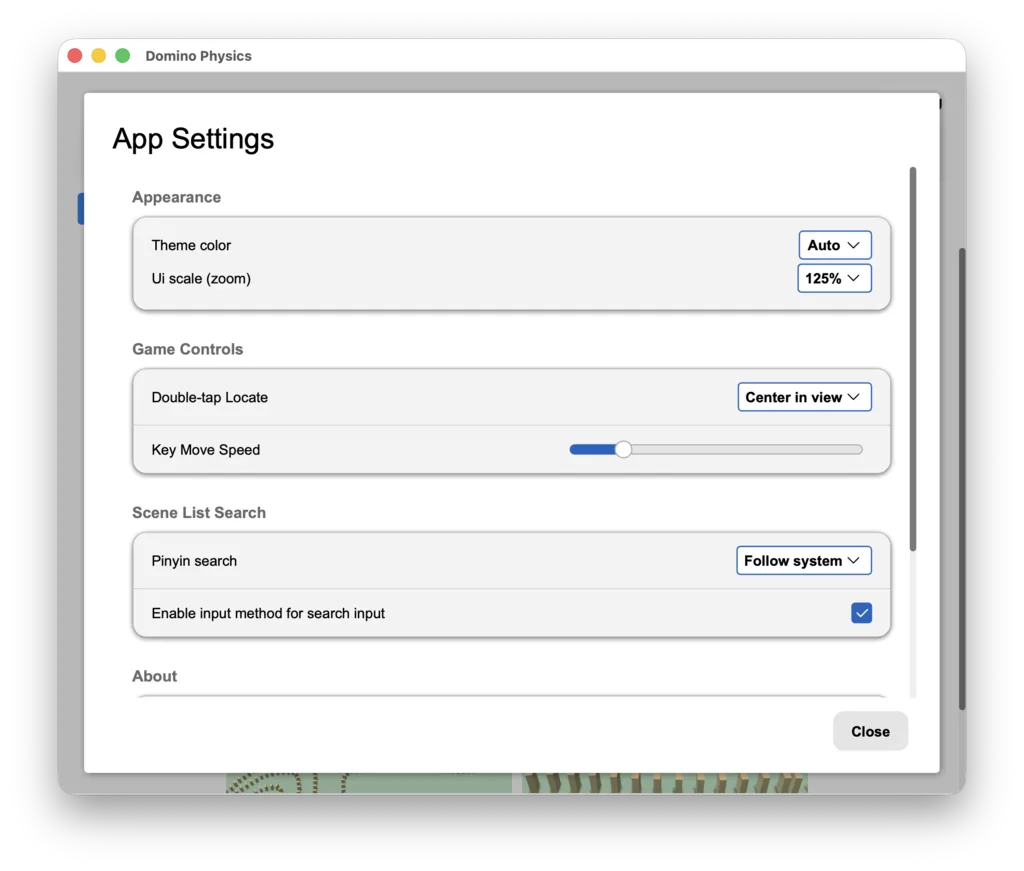
App settings
Reachable from the home header, the editor toolbar and the Play mode settings dialog.
Appearance: theme colour and UI scale, with light / dark following the system.
Game Controls: double-tap locate mode and the Key Move Speed multiplier (0.1x-5x).
Scene List Search: Pinyin search (follow system / on / off) and Enable input method for search input - turn it off to type pinyin straight into the search box.
These are global settings kept in the app's own settings.json; they are not copied or deleted with a scene.
Scene library and local storage
Create, duplicate, rename and delete scenes on the home screen; tapping a scene plays it, and the card menu opens the editor.
Search matches pinyin initials. Sorting: Recent (last opened first), Created (newest first), Title (by pinyin order).
The three timestamps differ: Created is written once, Modified on every save, and Recent refreshes whenever a scene is opened or saved - that is what the default sort uses.
Tiles, balls, tracks, camera, lighting and scene size are all stored in a local database: no network, no uploads. Leaving with unsaved changes asks first.